
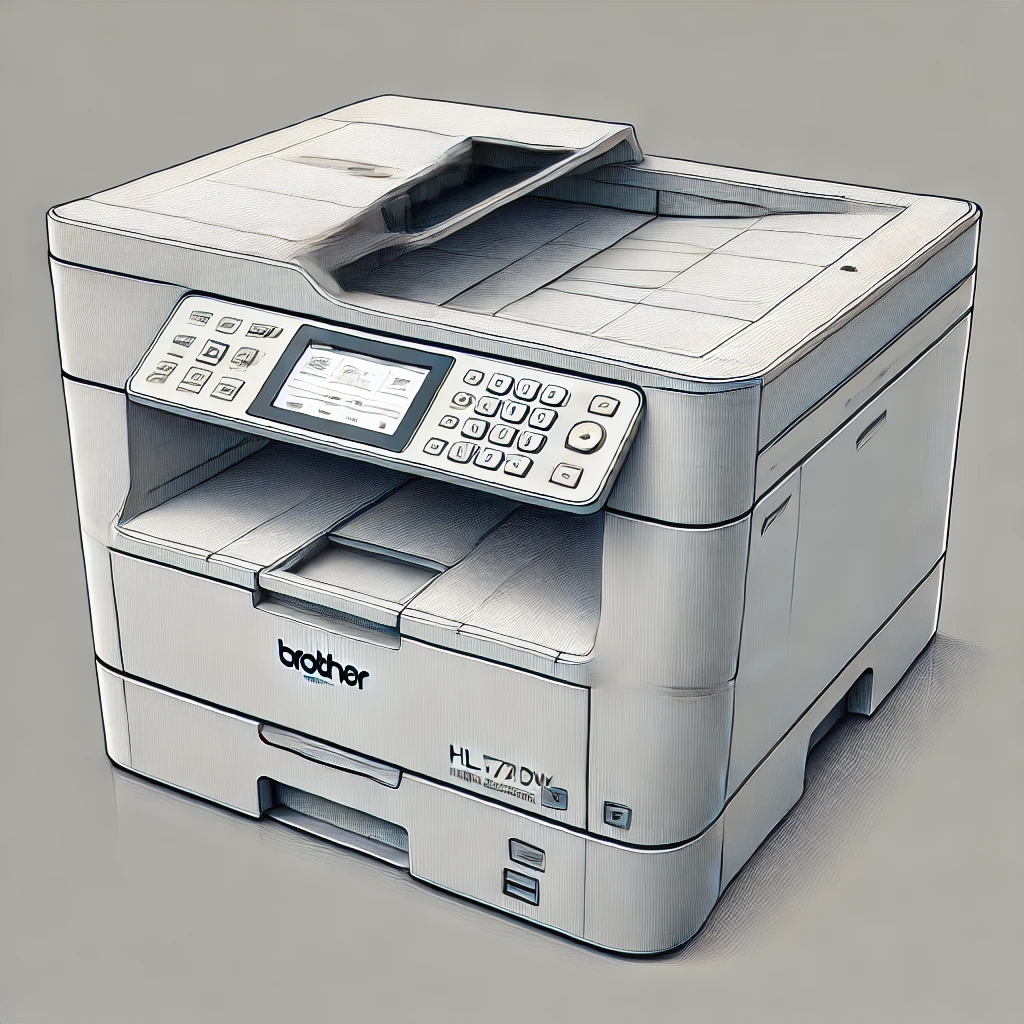
Brother’s series of printers, such as those using the Brother TN-2410 and TN-2420 toner cartridges, have introduced both reset gears and reset chips in their consumables. This change has led to the question of whether it’s more cost-effective to refill these cartridges or simply replace them with compatible alternatives. Let’s delve into the best strategies to avoid overpaying for toner while ensuring optimal printer performance.
Understanding Brother TN-2410 and TN-2420 Toner Cartridges
The Brother TN-2410 (standard yield) and TN-2420 (high yield) toner cartridges are compatible with several models in the Brother HL-L2730 family of monochrome laser printers and multifunction printers (MFPs). These models include:
- BROTHER DCP-L2510 D (30PPM)
- BROTHER DCP-L2530 DW (30PPM)
- BROTHER DCP-L2550 DN (34PPM)
- BROTHER HL-L2310 D (30PPM)
- BROTHER HL-L2370 DW (36PPM)
- BROTHER MFC-L2710 DN (30PPM)
- BROTHER MFC-L2730 DW (34PPM)
- BROTHER MFC-L2750 DW (36PPM)
The cartridges come in yields of up to 1,200 pages for the TN-2410 and up to 3,000 pages for the TN-2420, making the latter a better value for high-volume printing needs. Additionally, all printers ship with a 700-page starter cartridge, which lacks the reset gear.
Maximising Toner Usage with Continue Mode
One of the most common ways to avoid overpaying for toner is to use the “Continue Mode” on your Brother printer. Typically, the printer will prompt you to replace the toner cartridge before all the toner has been used, which can lead to unnecessary expenses. By ignoring the “Toner low” messages and activating Continue Mode, you can force the printer to use up all remaining toner.
How to Activate Continue Mode
For Brother HL Series:
- Open the printer’s front cover.
- Turn off the printer.
- Press and hold the GO button.
- Turn the printer back on while still holding the GO button.
- Release the GO button within three seconds of turning the printer on.
- Press the GO button nine times in quick succession.
For Brother DCP/MFC Series:
- Access the printer’s control panel.
- Navigate to General Setup > Replace Toner.
- Select Continue and press OK.
- Exit the menu to save the settings.
After enabling Continue Mode, you can continue printing until the toner is fully depleted and the print quality begins to fade. This approach ensures that you get the most out of each cartridge before considering a replacement.
Refilling Brother TN-2410 and TN-2420 Cartridges: Is It Worth It?
Refilling your Brother TN-2410 or TN-2420 cartridge can be an eco-friendly option, but it may not be the most economical choice due to the complexity of the process. To refill:
- Wait until the toner is completely used up, following the reset instructions.
- Remove the two posidrive screws and end plate to access the toner cap.
- Empty out any remaining toner and refill the cartridge with approximately 80g of new toner.
- Reassemble the cartridge, ensuring the reset cog is in the correct position.
It is important to note that refilling the cartridge does not automatically reset the toner level indicator. Brother printers require a chip for correct operation, and while it is technically possible to replace this chip, doing so adds significant cost, making refilling financially unviable.
The Cost-Effective Alternative: Compatible Cartridges
Given the hassle and potential costs associated with refilling, we recommend replacing the TN-2410 and TN-2420 cartridges with compatible alternatives when they are fully depleted. Compatible cartridges, especially high-yield ones like the TN-2420, offer a more straightforward and cost-effective solution without compromising print quality.
Conclusion
While refilling your Brother TN-2410 and TN-2420 cartridges may seem like a cost-saving measure, the process can be cumbersome and potentially costly if you need to replace the chip and reset gear. Instead, maximise toner usage by enabling Continue Mode and consider switching to high-quality compatible cartridges when the toner is fully depleted. This approach ensures you avoid overpaying for toner while maintaining your Brother printer’s performance.
Disclaimer
The information provided in this article is for general guidance only. We do not assume any responsibility for any damage, malfunction, or warranty invalidity that may result from following the instructions or suggestions outlined herein. The reader assumes full responsibility for any actions taken based on this information, including but not limited to refilling toner cartridges, activating Continue Mode, or using compatible cartridges. We recommend consulting with the printer manufacturer or a qualified technician before making any modifications to your printer.